Bridging the Gap: Integrating AI Assistants with Ghidra via the MCP SSE Bridge
Intro
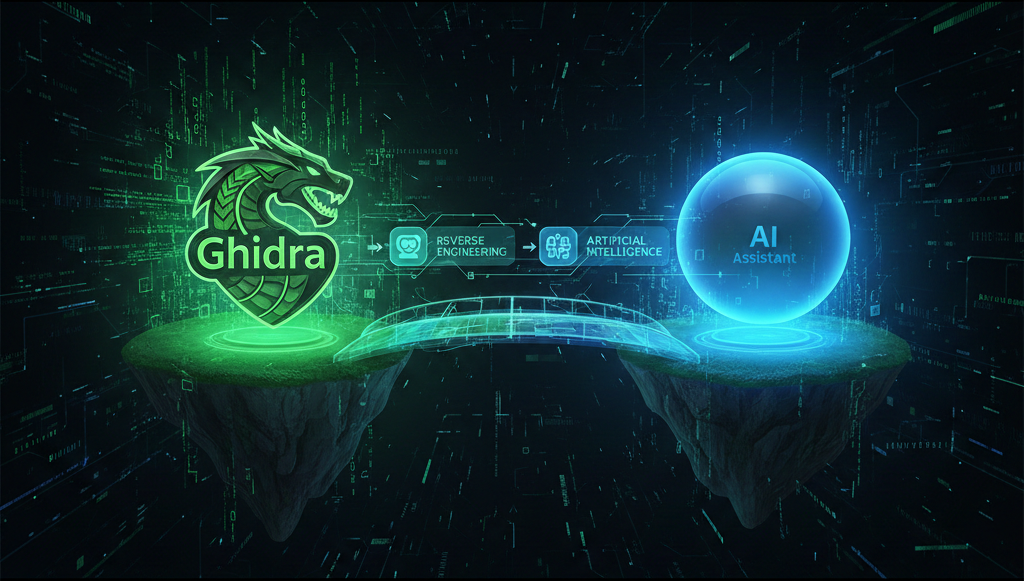
In the world of reverse engineering and binary analysis, tools like Ghidra are indispensable. But what if you could supercharge your Ghidra workflow by seamlessly integrating it with powerful AI assistants like Claude Desktop or Gemini CLI? This is precisely what the Ghidra MCP Bridge project aims to achieve.
The Challenge
AI assistants, particularly those designed for local execution or CLI interaction, often communicate with local services using Standard Input/Output (Stdio) and adhere to protocols like the Model Context Protocol (MCP). Ghidra, through its excellent GhidrAssistMCP plugin, exposes its MCP capabilities via a Server-Sent Events (SSE) endpoint and HTTP. This creates a communication gap: how do you get an AI assistant that speaks Stdio to talk to a Ghidra plugin that speaks SSE/HTTP?
The Solution: Ghidra MCP Bridge
The ghidra_mcp_sse_bridge.py script acts as a clever intermediary, a “bridge” that resolves this communication mismatch. It’s a Python-based tool designed to connect AI assistants like Claude Desktop and Gemini CLI directly to Ghidra’s GhidrAssistMCP plugin.
Here’s how it works:
- It listens for Model Context Protocol (MCP) requests from your AI assistant (Claude Desktop or Gemini CLI) over Standard Input/Output (Stdio).
- It then proxies and translates these Stdio requests to
GhidrAssistMCP’s exposed Server-Sent Events (SSE) and HTTP endpoints within Ghidra. - Responses from
GhidrAssistMCPare then proxied back to the AI assistant via Stdio, completing the communication loop.
Why is this useful?
This bridge unlocks a new level of productivity for reverse engineers and security researchers, enabling AI assistants to interact deeply with Ghidra’s powerful analysis features. Imagine being able to:
- Programmatic Analysis: Leverage AI to analyze specific functions, list program information, or extract strings and imports using the
GhidrAssistMCP’s rich set of 34 built-in tools and 5 MCP resources. - Intelligent Queries: Query for cross-references, data types, or memory regions using natural language, receiving insights facilitated by
GhidrAssistMCP’s intelligent caching and prompt consolidation. - Automated Workflows: Automate repetitive analysis tasks or even generate tailored decompiler outputs directly through your preferred AI interface, benefiting from features like asynchronous task support and multi-program compatibility.
By connecting these powerful tools, you can leverage the AI’s analytical capabilities directly within your Ghidra environment, streamlining your workflow and gaining deeper insights faster.
Getting Started
To leverage the Ghidra MCP Bridge, follow these steps to set up both the GhidrAssistMCP plugin and the Python bridge script.
Prerequisites:
- Python 3.10+
- Claude Desktop or Gemini CLI
- Ghidra 11.4+ (tested with Ghidra 12.0 Public)
1. Install GhidrAssistMCP Plugin in Ghidra:
- Download: Obtain the latest
.zipfile from the GhidrAssistMCP Releases page. - Install: In Ghidra, navigate to
File → Install Extensions.... Click the green ‘+’ icon (Add Extension), select the downloaded.zipfile, and click ‘OK’. - Restart Ghidra when prompted.
- Enable Plugin: After restarting, go to
File → Configure → Configure Plugins..., search for “GhidrAssistMCP”, and ensure its checkbox is marked. The GhidrAssistMCP server should now be running (default:http://127.0.0.1:8080/sse).
2. Set Up the ghidra_mcp_bridge Script:
- Clone Repository: Clone or download the
ghidra_mcp_bridgerepository:1 2
git clone https://github.com/patchvara/ghidra_mcp_bridge.git cd ghidra_mcp_bridge - Install Dependencies: Install the required Python packages:
1
pip3 install -r requirements.txt
(It’s recommended to use a Python virtual environment for this.)
3. Configure Your AI Assistant:
This step involves telling your AI assistant where to find and how to launch the ghidra_mcp_sse_bridge.py script.
For Claude Desktop:
- Locate your Claude Desktop configuration file:
- macOS:
~/Library/Application Support/Claude/claude_desktop_config.json - Windows:
%APPDATA%\Claude\claude_desktop_config.json
- macOS:
- Add the following entry to the
mcpServersobject within the JSON file:1 2 3 4 5 6 7 8 9 10
{ "mcpServers": { "ghidra": { "command": "python3", "args": [ "/absolute/path/to/ghidra_mcp_bridge/ghidra_mcp_sse_bridge.py" ] } } }
(Replace
/absolute/path/to/ghidra_mcp_bridge/with the actual absolute path to your clonedghidra_mcp_bridgedirectory.)
For Gemini CLI:
- Locate your Gemini CLI settings file (user-level or project-level):
~/.gemini/settings.json.gemini/settings.json(in your project root)
- Add the same
mcpServersentry as described for Claude Desktop above to yoursettings.jsonfile.
4. Connect and Use:
- Restart Claude Desktop or Gemini CLI.
- A “ghidra” connection icon or option should now appear within your AI assistant’s interface, indicating a successful connection. You can now use your AI assistant to perform tasks in Ghidra via the
GhidrAssistMCPplugin!